3D Grid context menu
The options listed in the context menu may differ depending on grid type.
Hide (Show) Hide or show it in your view.
Display Settings
Mesh Color Pick the color to be used to display the mesh.
Render Mode Display it as a solid surface, as a wireframe, or as a solid surface with wireframe mesh. For a surface in a 3D mesh model, you can also select to display as a solid surface with wireframe mesh and nodes, as a solid surface with nodes, as a wireframe, as a wireframe with nodes or as nodes only.
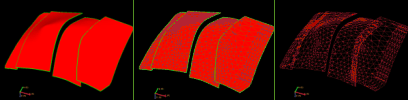
Render modes. Left to right; solid, solid with wireframe mesh, and wireframe mesh only. click to enlarge
Mesh Display Level Set the detail level of the display of the mesh.
Top and Base Layers Visible If the grid is a JewelGrid, it will have an additional top and base layer due to the JewelGrid system technology. Show or hide these layers.
Reset Boundaries Reset the display boundaries of the grid to the full dimensions.
Transparency Make it semi-transparent. Adjust the opacity value from the Property Inspector.
Lighting Turn a lighting effect on or off. The lighting effect can enhance the visibility of contours.
Contours Show or hide contour lines relating to the display of properties on a grid or surface.
Contour Labels Show labels on contour lines.
Contouring Options Open the Contouring Options form to specify a wide range of contouring settings.
Interpolation This display setting affects the (color) interpolation of the object displayed in your view. Without interpolation, the color boundaries are sharp; with interpolation switched on, the boundaries are smoothed.
Disable Combined Filters (Only for 3D grids, 3D meshes and point sets) In case 'Use as Combined Filter' was applied to one or more properties of the selected object, 'Disable Combined Filters' removes this setting from all the properties at once.
Duplicate
Grid and Settings Create a copy of the 3D grid and associated data, and place it in the 3D grids folder in the JewelExplorer.
Settings Only Create a copy of the 3D grid settings only and place it in the 3D grids folder in the JewelExplorer.
Create
Properties Create properties on the 3D grid. You can select one property at a time from the predefined list.
Regions Create a regions property for the 3D grid.
Zones Create zones for the 3D grid.
Segments Create segments in the 3D grid.
Compartments Create compartments for the 3D grid.
Blocked Wells Create blocked wells in the 3D grid. Blocked wells are a filter for the upscaled property grid attributes and are the grid cells directly surrounding the wells (i.e. they form the stack of grid cells that are penetrated by the well trajectories). The Blocked wells folder is stored in the JewelExplorer under 3D Grids > JewelGrid.
Tri-mesh Discontinuities Create tri-mesh discontinuities in the 3D grid. For all faults that are assigned to the 3D grid, a tri-mesh representation with the same name is created and stored in the Data folder.
Tri-mesh Horizons Create tri-mesh horizons in the 3D grid. For all the stratigraphic surfaces that are assigned to the 3D grid, a tri-mesh representation with the same name is created and stored (as a horizon) in the Data folder.
Point Set Create a point set from the 3D grid. The point set will be stored in the Data folder.
Properties
Property Table... View a table showing statistical information on all its properties. Select multiple items in the JewelExplorer, right click on one of them to open its context menu and select this item to display the properties of all those items at once in the table. For more on this, see Property table.
Set Active Property Select the property that you want to show on the grid. The folders and properties listed here are based on the items available under 'Properties'. The folders act as a filter.
View History Open the Audit Trail to view a history of changes, including user name, date, context, workflow process, workflow panel, and description. For more on the Audit Trail, see Using the audit trail.
Report Create a Blocked Well Report, Wellbore Perforation Report or Grid Statistics Report.
Get updates from DMS DMS can hold multiple version of a single object. One of these is always marked as 'Latest'. The latest version represents the final state of an object.
The 'Get Latest' option is only enabled when you have a version of an object that is parallel to the 'Latest' version. Select this option to replace your version with the latest version.
Export
To Generic ECLIPSE™ grid Export to ECLIPSE™ grid format.
To joagridset Export to the JewelSuite format.
To joagridset 2011 Compatible Export to the JewelSuite format compatible with older versions of JewelSuite Geomechanics.
To VRML Export to VRML format.
To Generic ECLIPSE™ wells Export to ECLIPSE™ format (blocked wells only).
To RESCUE-B Export to RESCUE-B format.
Auxiliary Information
Add Select one of the options to add auxiliary data of the selected type.
File Add information in the form of a file. In the dialog, navigate to the file you want to include and select it. You can include a wide variety of file types, including pdfs, images (*.bmp, *.jpg, *.gif, *.png, *.tif), movie files (*.avi, *.mpg, *.wmv, *.mov, *.qt, *.mp4), Excel™ spreadsheets (*.xls, *.xlsx), Word™ documents (*.doc, *.docx) and PowerPoint™ presentations (*.ppt, *.pptx). Click Open to select it and open the Add Auxiliary Information form.
Note Add a note using the Add Auxiliary Information form. After making a selection and entering the required information, click OK to save your settings and add the note.
Hyperlink Add a hyperlink using the Add Auxiliary Information form. Enter a (descriptive) name for the link and the URL (address). Click OK to save and add the link.
DMS Link Add a link to a DMS solution using the Add Auxiliary Information form. Connect first to DMS, and select a solution from the 'Select a DMS Solution' form. The DMS server url where the DMS solution you selected is stored, shows in the Address field. Enter a (descriptive) title and click OK to save and add the link.
Screen Capture Add a screen capture of your view area using the Add Auxiliary Information form. Enter a (descriptive) title and click OK to save and add the screen capture.
Show Select one of the options to show hidden auxiliary information.
File Show all the files that are available for the selected object.
Note Show all the notes that are available for the selected object.
Hyperlink Show all the hyperlinks that are available for the selected object.
Screen Capture Show all the screen captures for the selected object.
Show All Show all the auxiliary information that is available for the selected object.
Hide Select one of the options to hide auxiliary information.
File Hide all the files that are available for the selected object.
Note Hide all the notes that are available for the selected object.
Hyperlink Hide all the hyperlinks that are available for the selected object.
Screen Capture Hide all the screen captures for the selected object.
Show All Hide all the auxiliary information that is available for the selected object.
Delete Select one of the options to delete auxiliary information.
File Delete all the files that are available for the selected object.
Note Delete all the notes that are available for the selected object.
Hyperlink Delete all the hyperlinks that are available for the selected object.
Screen Capture Delete all the screen captures for the selected object.
Show All Delete all the auxiliary information that is available for the selected object.
For more information on auxiliary data, see Adding auxiliary data.
Remove
Delete Delete the object from the solution. Depending on the type of object, geometric representations, subfolders or objects it may contain are deleted as well.